
Navigating the documentation
- Back
- Administrative Panel Main Page (Dashboard)
- Content (posts, pages, categories, comments, selections, forms)
- Media files (File Manager)
- Users, their groups, and permissions
- Feeds (Content Distribution)
- Modules
- Themes
- Analytics
- CMS Settings
- About the System
Managing Users, Their Groups, and Permissions via the GIRVAS CMS Administrative Panel
The CMS admin panel manages users and assigns their rights through user groups. The GIRVAS CMS software comes with pre-installed groups: Administrator, Moderator, Editor, and User. We recommend not deleting the pre-installed user groups.
The "Users" section includes two subsections:
- Users – a section for managing users;
- Groups – a section for managing user groups and their permissions;
Users
The "Users" subsection manages user accounts registered on the website. This section also provides functionality for managing user groups.
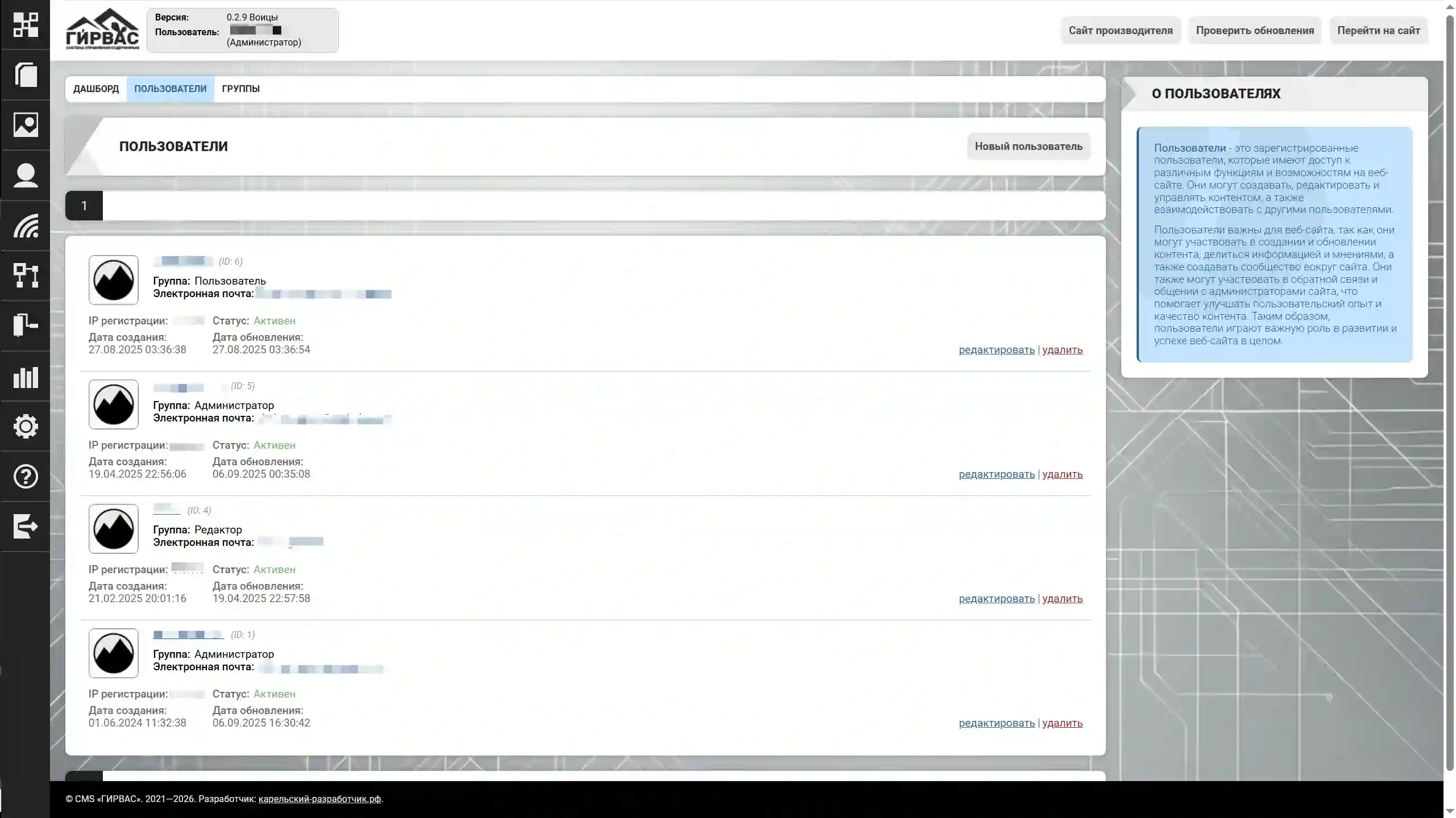
The subsection's start page displays a list of created users. Each list item has a toolbar for interaction:
- Edit – edit an item;
- Delete – delete an item.
Creating and Editing Users
Users can be created by registering via the technical page /registration or via the admin panel. To create a user via the admin panel, click the "New User" button to the right of the section name.
ATTENTION! User registration can be disabled in the "Security" subsection of the "CMS Settings" section.
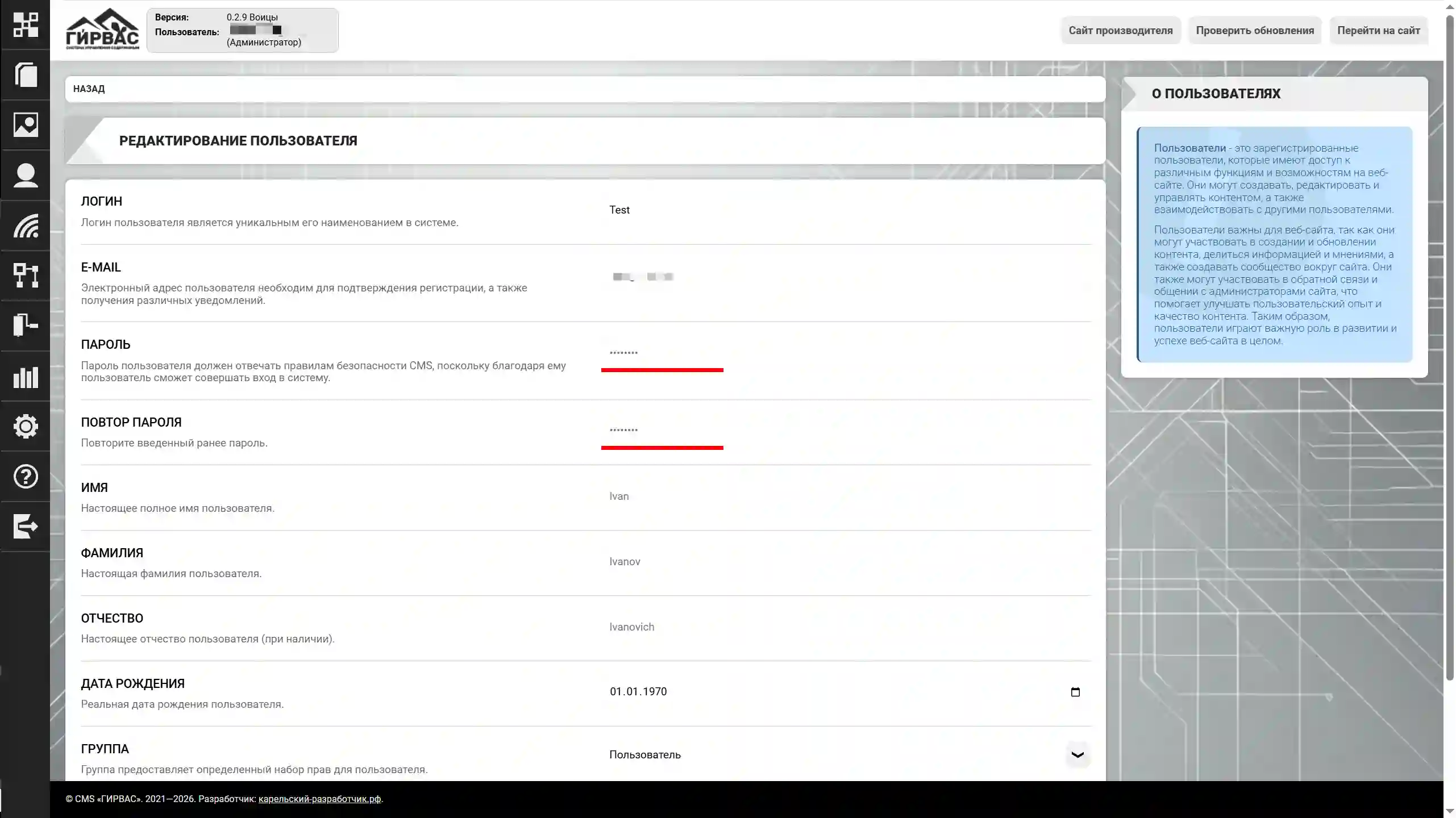
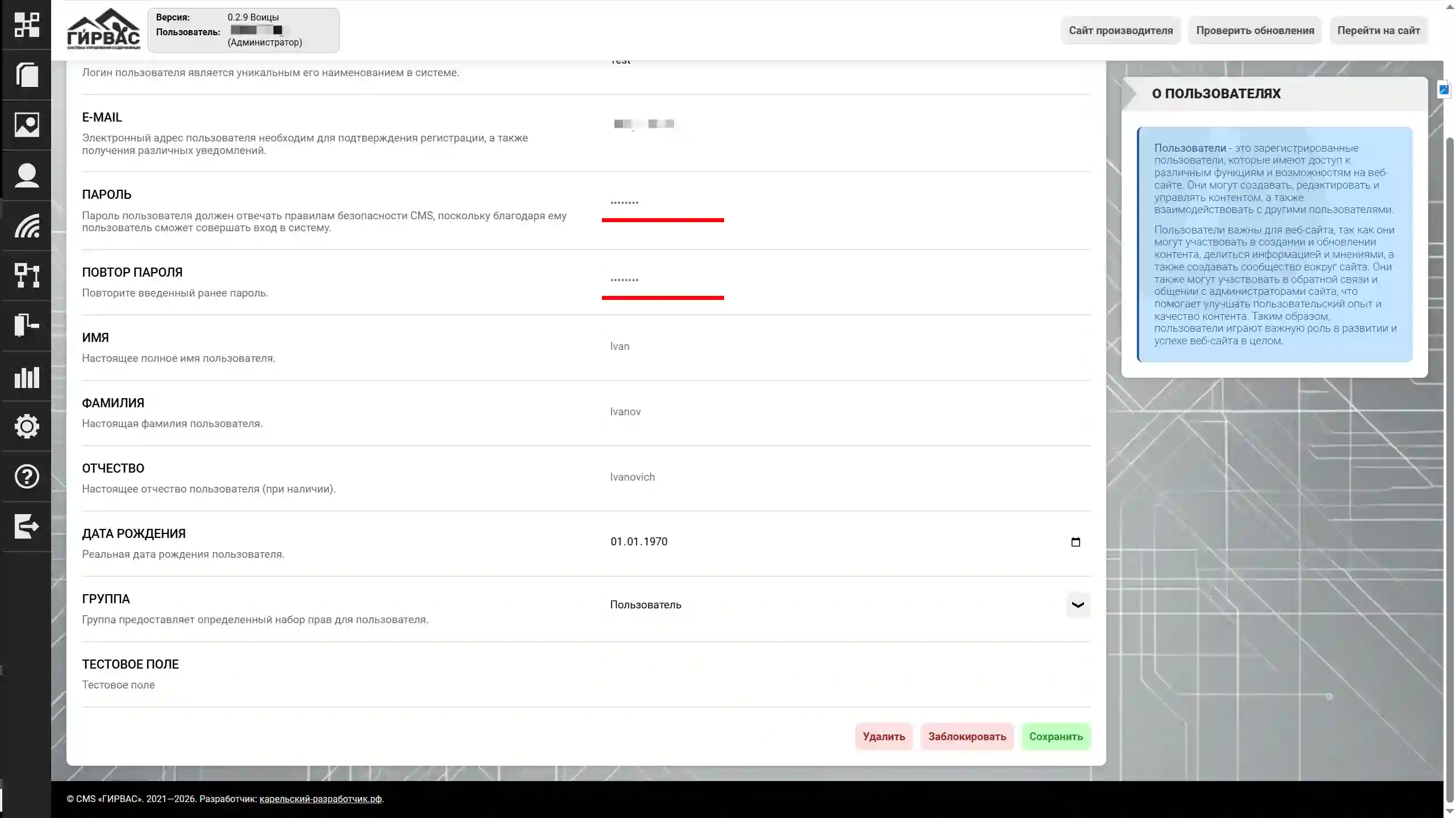
Creation and editing are performed through a single "Edit User" tool, which is a form for filling in data. The form includes the following fields:
- Login – the user's nickname (the name displayed on the website). This field must be filled in using only Latin characters;
- Email – the user's email address;
- Password – the user's password. Latin characters, numbers, and special characters are allowed:
$%&#@?(if enabled in the "Security" subsection of the "CMS Settings" section). The minimum length is 6 characters (or other length based on personal CMS configuration settings). For convenience, a password strength indicator has been implemented; - Repeat Password – password confirmation (requires re-entry);
- First Name – the user's real first name;
- Last Name – the user's real last name;
- Parent Name – the user's real patronymic;
- Date of Birth – the user's date of birth;
- Group – the group to which the user belongs. Default: "User".
Legal requirement for website owners in the Russian Federation
According to Federal Law No. 152-FZ "On Personal Data," consent to the processing of personal data (SOPD) is required from the subject whose data is entered into the user edit form fields, if any. If the owner is not the personal data operator, they must notify the Federal Service for Supervision of Communications, Information Technology, and Mass Media (Roskomnadzor) via a special notification form on the agency's website.
If personal data is processed without being recorded in the Registry and without the consent of the subject, the actual operator of the personal data may face a fine, including criminal liability.
Blocking a User
Blocking a user is accomplished by clicking the "Block" button on the user edit page. Once blocked, the user will be unable to log in to the system.
To remove a current block, click the "Unblock" button on the user edit page.
Deleting a User
Deleting a user is accomplished by clicking the "Delete" button on the user list page in the "Users" section. Deletion is also available by clicking the "Delete" button on the user edit page.
When attempting to delete a user, the system displays a pop-up window asking for confirmation. If confirmed, the user is permanently deleted; if rejected, the action is canceled.
User Groups and Their Permissions
The start page of the "User Groups" subsection displays a list of previously created groups. Each list item has a toolbar for interaction:
- Edit – edit the item;
- Delete – delete the item.
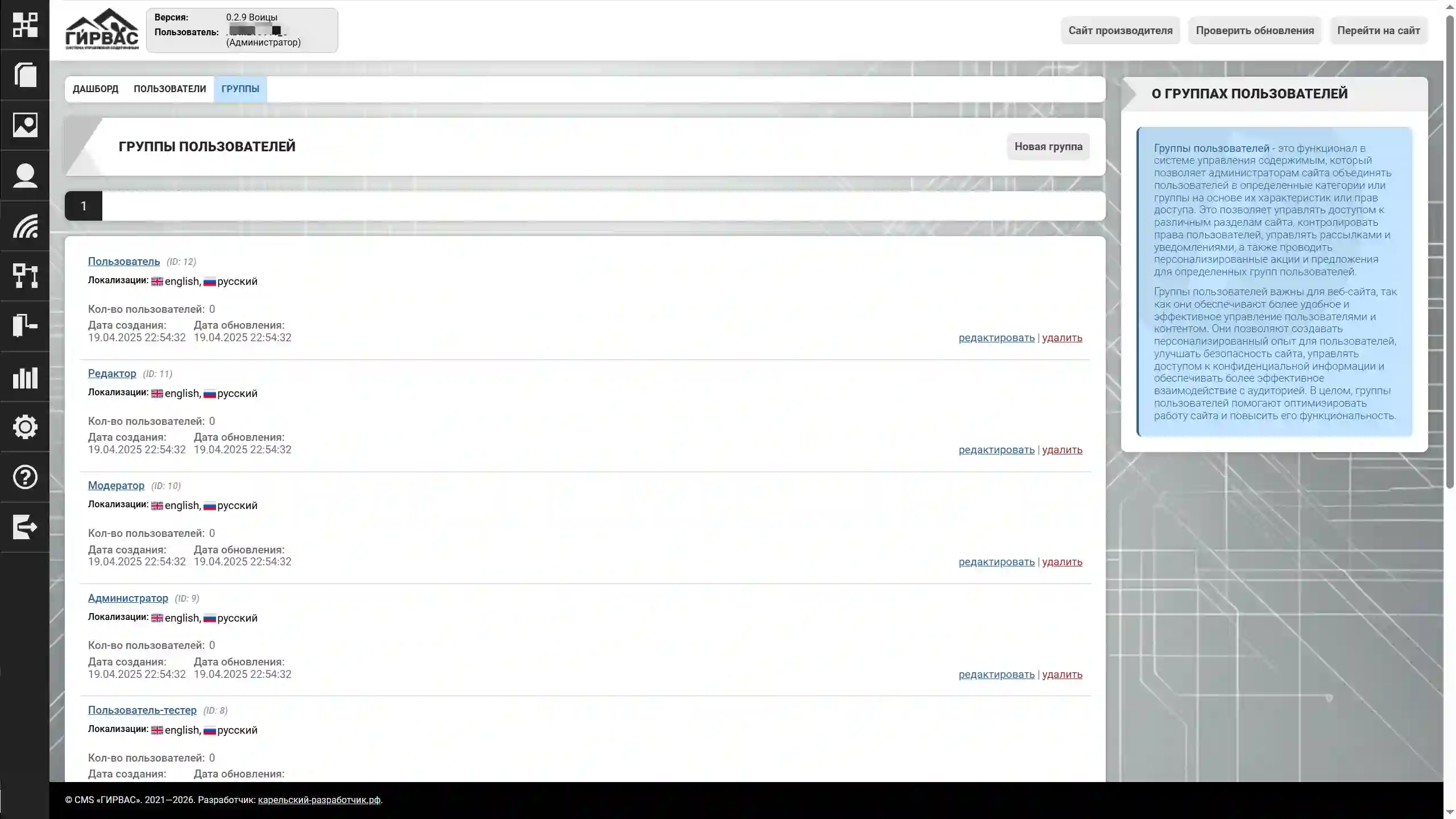
Creating and Editing User Groups and Their Permissions
User groups are created through the admin panel. To create a group, click the "New Group" button to the right of the subsection name.
Creation and editing are performed through a single "Edit User Group" tool, which is a form for filling in data. The form includes the following fields:
- Technical Name – the name used to generate CSS classes when styling user group headers (e.g., in post comments);
- Title – the display name of the group, displayed next to the user in comments or their profile.
The "Edit User Group" tool supports the CMS's multilingual system. To change the language of a user group, select the appropriate value from the drop-down list located to the right of the tool's header.
In addition to text fields, the form includes radio buttons ("sliders") for setting the permissions of the group being created or edited.
User Group Permissions
Administrative Permissions
WARNING: Administrative permissions are critical. It is recommended not to assign them to non-administrative groups.
- Administrative Panel Authorization – the ability to log in to the administrative interface. Even if your credentials are compromised, attackers will not be able to access the administrative panel without this permission;
- User Management – the right to perform user management operations: create, edit, and delete;
- User Group Management – the right to perform user group management operations: create, edit, and delete;
- CMS Theme Management – the right to perform CMS theme management operations: upload, install, and delete;
- CMS Module Management – the right to perform CMS module management operations: upload, install, and delete;
- Manage CMS Feeds – the right to perform feed management operations: create, edit, and delete;
- Manage CMS Forms – the right to perform form management operations: create, edit, and delete;
- Manage CMS Settings – the right to configure CMS parameters through the "CMS Settings" section;
- View CMS Reports – the right to view CMS reports. ATTENTION: This right has been implemented but is not used, as the reporting system is under development and will be introduced in future versions.
Modifier Rights
- Block Users – the right to block user accounts;
- Manage Post Comments – the right to manage post comments: hide, show, and delete;
- Issue Warnings to Users – the right to issue warnings to users.
Editorial Permissions
- Edit Posts – the right to manage posts: creating, editing, and deleting;
- Edit Post Categories – the right to manage post categories: creating, editing, and deleting;
- Edit Static Pages – the right to manage static pages: creating, editing, and deleting;
- Manage Media Files – the right to manage media files: uploading and deleting.
Basic (Basic) Permissions
- Create New Comments – the right to create new comments on existing posts on the site;
- Edit Your Own Comments – the right to manage your own comments: editing and deleting;
- Change Comment Ratings (except for your own) – the right to change the ratings of other users' comments.
Deleting a User Group
A user group can be deleted by clicking the delete icon on the group list page in the "User Groups" subsection. Deletion is also available by clicking the "Delete" button on the group editing page.
When attempting to delete a user group, the system displays a pop-up window asking for confirmation. If confirmed, the user group is permanently deleted; if rejected, the action is canceled.